Elasticsearch Stack Monitoring, A Production Guide
Elasticsearch Stack Monitoring, A Production Guide
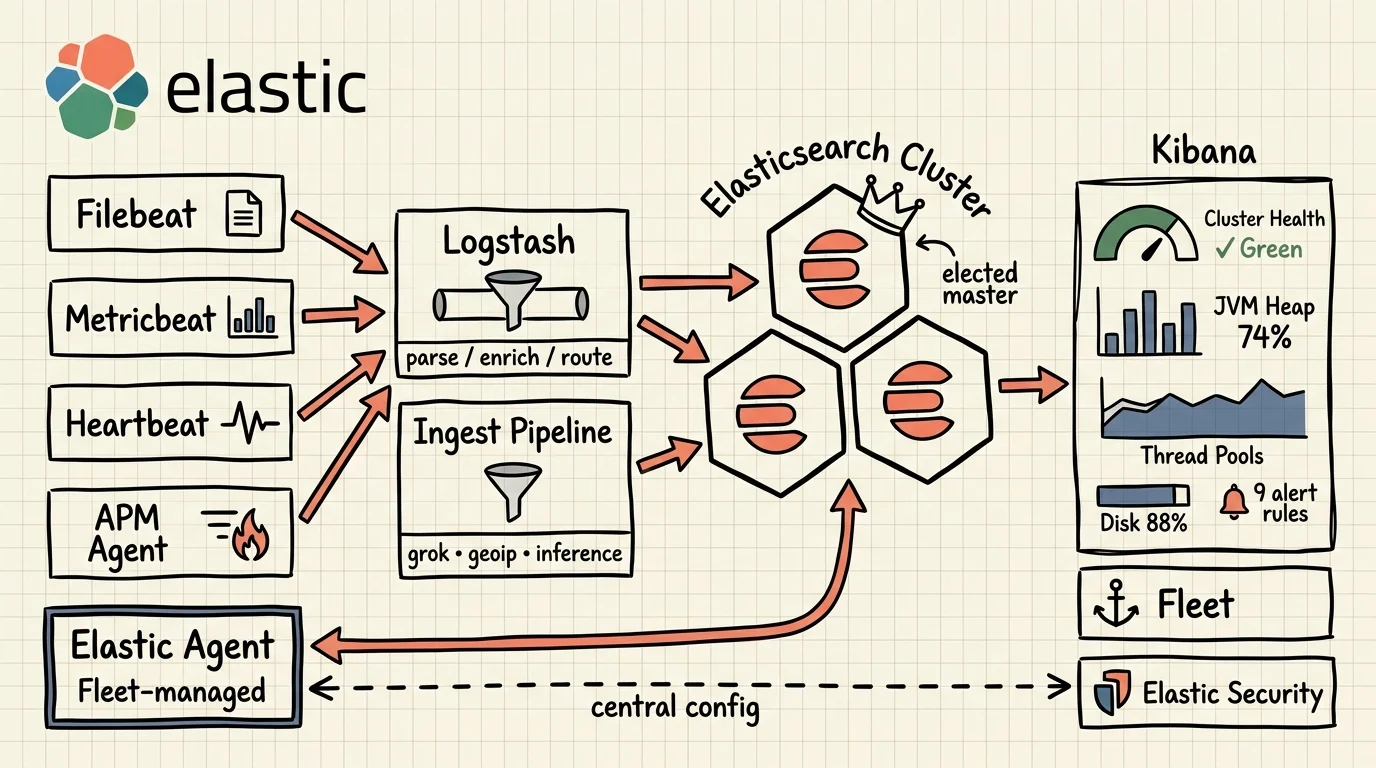
Stack Monitoring is how you know your Elasticsearch cluster is healthy before your users tell you it isn't. It collects logs and metrics from every component in the Elastic Stack — nodes, indices, Kibana instances, Logstash, Beats, APM Server — stores them as searchable JSON documents, and surfaces them through a purpose-built Kibana UI with pre-wired alerting rules.
The default experience without Stack Monitoring is discovery by complaint — someone from the application team files a ticket because queries are slow, and that's your first signal that thread pool rejections started accumulating two hours ago. JVM heap creeps toward the 85% threshold, disk fills to the flood watermark, Elasticsearch stops accepting writes. Shards go unassigned and the cluster turns yellow — a state that can persist for months while teams grow numb to it, all while redundancy erodes.
This post covers what Stack Monitoring actually measures, the specific failure modes it catches, how to deploy it correctly, and the alerting thresholds that matter in production.
Key Takeaways
- Stack Monitoring collects metrics from Elasticsearch, Kibana, Logstash, Beats, and APM Server at a configurable interval (default 10s), stored as JSON in a monitoring cluster (Stack monitoring docs).
- Thread pool rejections are a leading indicator for cluster overload — the default alert fires at 300+ search or write rejections over 5 minutes (Stack monitoring alerts).
- A cluster stuck at yellow status has real, active data loss risk. Unassigned replicas mean any single-node failure produces a red cluster with missing primary shards.
- The monitoring cluster must be separate from the production cluster — if your production cluster is the thing having trouble, you need monitoring data accessible from outside it.
- Elastic Agent is the recommended collection method, managed centrally via Fleet — no per-node configuration (Collecting monitoring data with Elastic Agent).
TL;DR — Stack Monitoring watches JVM heap, GC pressure, thread pools, disk watermarks, shard allocation, search and indexing throughput, CCR replication lag, and cluster health status across every node, index, and stack component. Nine pre-built alert rules ship by default. Route monitoring data to a separate cluster. Use Elastic Agent as the collection method.
What Does Stack Monitoring Actually Cover?
Stack Monitoring watches five product categories in the Elastic Stack: Elasticsearch nodes, Kibana instances, Logstash nodes, Beats agents, and APM Server (Stack monitoring docs). Each monitored component is identified by a persistent UUID written to the path.data directory at first startup — so nodes are tracked across restarts and configuration changes without manual registry management.
Monitoring documents are ordinary JSON records, collected at a configurable interval. The default collection frequency is 10 seconds. Every document lands in Elasticsearch indices on the monitoring cluster, which means you can query the raw monitoring data directly via ES|QL or Query DSL when you need to go deeper than the Kibana UI allows.
The data splits into three categories: cluster-level metrics (health status, shard counts, search and indexing rates), node-level metrics (JVM, GC, thread pools, OS resources), and index-level metrics (segments, memory usage, per-shard state). Logs from Filebeat supplement the metrics stream with actual server and deprecation log entries.
Cluster Health — Why Yellow Is Often the More Dangerous State
Elasticsearch reports cluster health as green, yellow, or red. Most teams treat red as the priority. Red is the obvious, urgent state — one or more primary shards are unassigned, meaning data is unavailable for those shards. Teams respond immediately.
Yellow is more insidious. Yellow means all primary shards are allocated, but one or more replicas are not. The cluster appears functional. Search and writes continue. But the redundancy contract is broken. Every node that holds a yellow-status primary is now a single point of failure for that data.
A cluster that stays yellow long enough becomes invisible. Alerts fire, the on-call engineer checks and confirms writes are working, and the ticket gets closed. After this happens three times, teams stop reacting to yellow alerts. The cluster stays at yellow for months. Then a node fails for an unrelated reason — disk full, network partition, OOM kill — and the primary shard that had no replica goes missing. That's when yellow becomes red without warning.
The Stack Monitoring Cluster Overview page shows this directly: health status with a contextual indicator, active shard counts, unassigned shards highlighted in the table, and a recovery panel showing any shards currently being relocated or rebuilt. Anything requiring attention is highlighted in yellow or red. Conditions that need immediate action are pinned to the top of the clusters page (Elasticsearch metrics).
The GET /_cluster/health API provides the raw status programmatically:
GET /_cluster/health
{
  "cluster_name": "production",
  "status": "yellow",
  "number_of_nodes": 9,
  "number_of_data_nodes": 6,
  "active_primary_shards": 847,
  "active_shards": 1612,
  "unassigned_shards": 82,
  "number_of_pending_tasks": 0,
  "active_shards_percent_as_number": 95.15
}
The newer GET /_health_report API goes further — it provides root cause analysis with remediation steps, not just status codes (Health report API):
GET /_health_report
Response includes per-indicator health with diagnosis objects containing a cause, an action, and a step-by-step remediation guide. Set verbose=false when polling automatically — the root cause analysis is computationally expensive on frequent calls.
Node-Level Monitoring — JVM, GC, and Thread Pools
Node metrics are where production Elasticsearch problems typically originate. The Nodes section in Stack Monitoring shows per-node statistics with drill-down to Node Overview (high-level stats and recent logs) and Node Advanced (GC and memory detail).
JVM Heap Pressure and Garbage Collection
Elasticsearch runs on the JVM. The heap is the primary memory pool for all in-flight operations: search queries, aggregation buffers, segment merge operations, and fielddata caches. When heap usage consistently exceeds 75%, GC cycles become more frequent. When it hits 85%, GC pauses become long enough to affect search latency visibly.
The default JVM memory alert fires when heap usage reaches 85% averaged over 5 minutes (Stack monitoring alerts). That threshold is not arbitrary — it's the point at which G1GC's stop-the-world collections start extending into hundreds of milliseconds, causing search timeouts even when the hardware is otherwise healthy.
The Node Advanced view shows GC collection counts and durations over time. The pattern to watch for is not individual spikes but rising baseline. A node running 40 young-generation GC cycles per minute, where three weeks ago it ran 8, has a memory pressure trend that will continue until you address the root cause — usually unconstrained fielddata, large aggregations, or undersized heap allocation.
JVM heap on Elasticsearch should never be allocated above 30-31GB regardless of available RAM. Beyond that threshold, the JVM loses compressed ordinary object pointers (CompressedOops) — a JVM optimisation that encodes 64-bit heap addresses in 32 bits (Oracle JVM CompressedOops). Once CompressedOops are disabled, heap pointer sizes double, GC work increases, and the memory benefit of allocating more RAM is negated. Stack Monitoring will show heap pressure even on a node with 64GB RAM if the heap crosses this boundary — the fix is capping the heap correctly, not adding more RAM.
Thread Pool Rejections — The Leading Indicator
Elasticsearch processes requests through typed thread pools: search, write, get, analyze, and others. Each pool has a fixed thread count and a queue. When the queue fills and all threads are busy, new requests are rejected — the client receives a 429 or an EsRejectedExecutionException.
Thread pool rejections are the leading indicator for cluster overload, not just a symptom. They start occurring before GC pressure peaks, before search latency spikes, and well before out-of-memory kills. If you catch rejections early, you have time to act — scale out, reduce ingest rate, identify the runaway query — before the cluster degrades.
The default alert threshold is 300 or more rejections over 5 minutes, checked independently for search and write pools (Stack monitoring alerts).
Check the current thread pool state directly:
GET /_cat/thread_pool?v&h=node_name,name,active,queue,rejected
node_name       name    active queue rejected
node-1          search       4    15      241
node-1          write        8     0        0
node-2          search       4    28      186
node-2          write        8    12        3
A non-zero and growing rejected column on search means queries are being dropped. On write, it means indexing requests are being refused — data loss risk if the client isn't handling retries.
How Does Disk Watermark Monitoring Work?
Disk is the only resource failure in Elasticsearch that produces an immediate hard stop. CPU and memory pressure degrade performance gradually. A full disk triggers the flood watermark and Elasticsearch immediately sets all indices on affected nodes to read-only — no grace period, no warning beyond the alert threshold.
The three watermarks operate in stages:
- Low watermark (85% by default): Elasticsearch stops allocating new shards to this node.
- High watermark (90% by default): Elasticsearch relocates existing shards away from this node.
- Flood stage (95% by default): Elasticsearch sets all indices on this node to
read_only_allow_delete.
The Stack Monitoring disk usage alert fires at 80% averaged over 5 minutes — before the low watermark, giving you a 5-point window to act before shard allocation starts failing (Stack monitoring alerts). At 80%, you still have time to delete old indices, increase storage, or add nodes. At 85%, you're already into degraded shard allocation behaviour.
Stack Monitoring surfaces disk usage per node in the Nodes table, making it easy to identify which specific node is running low — critical in heterogeneous clusters where data node sizes vary.
Index and Shard Monitoring
The Indices section in Stack Monitoring shows per-index metrics including document count, size, search rate, and indexing rate, with drill-down to Index Overview and Index Advanced views.
Large Shard Detection
The large shard alert fires when an index's average shard size reaches 55GB (Stack monitoring alerts). This threshold exists because oversized shards create several compounding problems:
- Segment merges on large shards take longer, creating sustained I/O and CPU load during the merge window.
- When a node goes down, relocating a 100GB shard takes significantly longer than relocating ten 10GB shards — extending the cluster's degraded window.
- GC pressure increases because large shards accumulate more segment metadata and fielddata in heap.
The correct shard size range is 10GB–50GB per shard. For time-series data using ILM, the rollover policy should target this range. For static indices, the shard count in the index mapping controls average shard size.
Shard Recovery Visibility
The Cluster Overview page includes a shard recovery panel showing active recoveries — shards currently being initialised, relocated, or replicated after a node restart or topology change. Recovery activity creates sustained I/O load that competes with live search and indexing.
Check active recoveries directly to understand the current recovery queue before triggering further topology changes:
GET /_cat/recovery?v&h=index,shard,stage,type,source_node,target_node,bytes_percent
The bytes_percent column shows how far each shard recovery has progressed. During a rolling restart, wait for recovery to reach 100% on all shards before restarting the next node. Restarting nodes sequentially without checking recovery state is one of the most common causes of cascading failures in rolling upgrades — the second restart happens while the first node's shards are still relocating, doubling the recovery load and potentially triggering out-of-memory conditions on busy nodes.
The Index Advanced view exposes memory statistics per index — segment memory, fielddata cache size, and document values memory. This is where you diagnose indices consuming disproportionate heap.
Search and Indexing Performance Trending
The Cluster Overview charts show search and indexing performance over time — not just current values but historical trends. Threshold alerts fire at a point in time. Trend data is what you need for capacity planning — you're looking for direction, not just level.
Search rate (queries per second) and query latency tell you when search performance degrades. Indexing rate and indexing latency tell you when write throughput is under pressure. The pattern that matters is deviation from baseline: a cluster that normally handles 2,000 queries/second dropping to 800 queries/second is a signal even if latency hasn't crossed a threshold yet.
Search latency trends are useful for capacity planning in ways that raw throughput numbers aren't. If search latency is gradually increasing over four weeks at constant query volume, the cluster is accumulating segment fragmentation, growing fielddata caches, or both. This trend is invisible without historical monitoring data — you wouldn't notice it on any single day's metrics. With Stack Monitoring, you can pull six weeks of latency data and correlate it with indexing volume, ILM rollover frequency, or deployment changes.
For more detail on how indexing performance is affected by ingestion method, see Getting Data into Elasticsearch.
Stack Monitoring Alert Rules — Default Thresholds
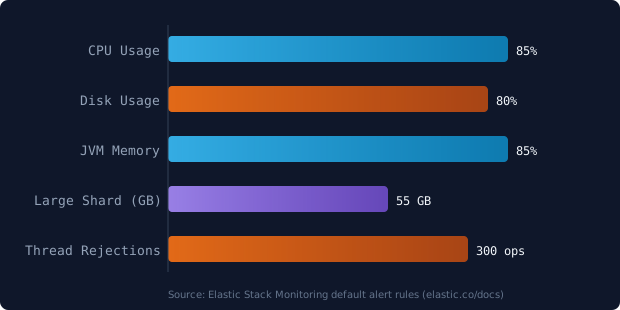
Stack Monitoring ships nine preconfigured alerting rules in Kibana. When you open Stack Monitoring for the first time, Kibana prompts you to create them. They are evaluated every 60 seconds and re-notify daily by default (Stack monitoring alerts).
| Rule | Default Threshold | Window | What It Catches |
|---|---|---|---|
| CPU usage | ≥ 85% | 5 min avg | Sustained compute pressure on specific nodes |
| Disk usage | ≥ 80% | 5 min avg | Storage approaching low watermark |
| JVM memory | ≥ 85% | 5 min avg | Heap pressure preceding GC degradation |
| Missing monitoring data | Silent for 15 min | 1 day lookback | Monitoring agent failure or node loss |
| Thread pool rejections | ≥ 300 (search or write) | 5 min | Request queue saturation |
| CCR read exceptions | ≥ 1 | 1 hour | Cross-cluster replication failures |
| Large shard size | ≥ 55GB avg | 5 min | Oversized shards causing GC and recovery load |
| Cluster health status | Yellow or Red | 1 min | Shard allocation failure, version mismatch, node change |
| License expiration | 60 / 30 / 15 / 7 days | — | Subscription expiry approaching |
The missing monitoring data rule is the most underrated of the nine. It fires when a monitored node stops sending metrics for 15 minutes. This catches two different problems: the node itself has gone down (in which case you'll also see a red cluster status), and the monitoring agent — Elastic Agent or Metricbeat — has crashed or been misconfigured. The second scenario is the dangerous one. Without this rule, your monitoring pipeline can silently fail and you won't know until you check Kibana manually and notice the last data point was two days ago.
To receive external notifications, configure a connector (PagerDuty, Slack, email, webhook) and attach it to each rule. On Elastic Cloud Hosted, the Elastic-Cloud-SMTP email connector is available by default. Access the rules via Stack Monitoring → Alerts and rules → Create default rules or from the global Rules management page.
Default Alert Thresholds at a Glance
The Case for a Separate Monitoring Cluster
The recommended production architecture routes monitoring data to a dedicated monitoring cluster rather than storing it on the production cluster it monitors (Stack monitoring docs).
Resource isolation is part of it, but the real reason is simpler: if your production cluster is the thing melting down, those same conditions affect the monitoring data writes. You may lose precisely the metrics you need most at the moment you need them. A separate cluster decouples the observer from the observed.
The practical setup: the monitoring cluster can be smaller than the production cluster. A 3-node monitoring cluster (hot tier only, moderate hardware) is sufficient for most production deployments. Monitoring documents are compact JSON records; even a busy 20-node production cluster generates modest monitoring data volume.
If you operate multiple production clusters, Stack Monitoring supports routing all of them to a single monitoring cluster — provided the appropriate license level and the monitoring cluster version is not older than the production cluster versions it monitors. This centralises visibility across environments without requiring a separate monitoring deployment per cluster.
For teams running Kubernetes, the equivalent pattern for Elasticsearch on ECK is covered in Kubernetes Autoscaling: HPA vs KEDA — the same "separate control plane from data plane" principle applies to monitoring topology.
Which Collection Method Should You Use?
Three methods collect monitoring data from self-managed deployments. Elastic Agent is the recommended path for new deployments. Metricbeat suits teams already invested in the Beats ecosystem. The legacy internal exporters were deprecated in 7.16 and should be migrated away from (Stack monitoring docs).
Elastic Agent (Recommended)
Elastic Agent collects both logs and metrics from a single process managed centrally through Fleet. Adding Elasticsearch monitoring is an integration configuration in Kibana — no SSH sessions, no per-node config files.
The setup requires a user with the remote_monitoring_collector built-in role on the production cluster. Two scope options matter:
clusterscope: A single Elastic Agent deployment pointed at a load-balancing proxy endpoint. Metrics for the entire cluster flow through one agent instance.nodescope (default): Elastic Agent deployed to each Elasticsearch node. Most metrics are collected from the elected master, so master-eligible nodes carry additional load. Do not use node scope if you have dedicated master nodes.
Fleet integration key settings for the Elasticsearch monitoring policy:
hosts: ["https://localhost:9200"]
scope: cluster
username: remote_monitoring_user
ssl.certificate_authorities: ["/etc/elasticsearch/certs/ca.crt"]
Metricbeat
Metricbeat remains fully supported and is the right choice when you have an existing Beats deployment or prefer file-based configuration over Fleet-managed agents. It ships a dedicated elasticsearch module that collects the same metric sets as Elastic Agent — cluster stats, node stats, index stats, shard data, and pending tasks.
Enable the module and configure the collection target:
metricbeat modules enable elasticsearch
Metricbeat module configuration (metricbeat.yml):
- module: elasticsearch
  metricsets:
    - cluster_stats
    - node
    - node_stats
    - index
    - index_recovery
    - index_summary
    - shard
    - ml_job
  period: 10s
  hosts: ["https://localhost:9200"]
  username: "remote_monitoring_user"
  password: "${MONITORING_PASSWORD}"
  xpack.enabled: true
Setting xpack.enabled: true is required for Stack Monitoring compatibility — it tells Metricbeat to format metrics in the internal monitoring format that Kibana's Stack Monitoring UI expects. Without it, data lands in standard Metricbeat indices and does not appear in the Stack Monitoring dashboard.
Legacy Internal Exporters (Deprecated since 7.16)
The xpack.monitoring.collection.enabled setting and the internal local and http exporters were deprecated in Elasticsearch 7.16. They remain functional on clusters that have not yet migrated, but Elastic no longer develops them and they will be removed in a future major version.
If you are still running legacy collection, the migration path is straightforward: disable the internal collector, deploy Elastic Agent or Metricbeat, and verify data appears in Stack Monitoring before removing the old configuration.
Disable legacy collection in elasticsearch.yml:
xpack.monitoring.collection.enabled: false
After disabling, follow the Elastic Agent setup or Metricbeat setup to replace it. Running both collection methods simultaneously results in duplicate monitoring documents — disable the legacy exporter before the new agent starts shipping data.
Cross-Cluster Replication Monitoring
If your deployment uses CCR, Stack Monitoring's CCR tab provides per-follower-index visibility into replication health. The key metric is sync lag in operations — how many write operations the follower index is behind the leader (Elasticsearch metrics).
Sync lag is calculated by comparing leader_max_seq_no (the maximum operation sequence number on the leader) with follower_global_checkpoint (the highest sequence number confirmed as replicated on the follower). The difference across all shards, taking the worst case, is the reported lag.
Additional per-follower metrics include:
- Last fetch time — the elapsed time since the last successful fetch from the leader. A growing last fetch time before visible sync lag often indicates network problems between clusters.
- Ops synced — operation count replicated in the selected time window.
- Alerts — any
read_exceptionevents, which represent hard replication errors requiring intervention.
The CCR read exceptions alert fires on a single exception in the last hour — low tolerance because CCR exceptions typically indicate a configuration problem or a shard-level issue that will not self-resolve.
For the broader distributed systems patterns around replication consistency, see Distributed Computing Fundamentals.
AutoOps — Where Stack Monitoring Is Heading
AutoOps is Elastic's newer monitoring layer, available for Elastic Cloud Hosted, Serverless, ECE, ECK, and self-managed clusters connected via cloud-connected mode (AutoOps docs).
Where Stack Monitoring provides raw metrics and threshold-based alerts, AutoOps adds:
- Performance recommendations — specific, actionable suggestions based on observed cluster behaviour (e.g., "this index has too few shards for its write throughput").
- Real-time issue detection — pattern recognition across multiple metrics simultaneously, catching compound problems that no single threshold catches.
- Resolution paths — step-by-step remediation guidance embedded directly in the detected issue, reducing time-to-resolve for on-call engineers.
Stack Monitoring and AutoOps are complementary. Stack Monitoring gives you full metric access, custom alerting flexibility, and works in air-gapped environments. AutoOps provides the expert pattern layer on top — like having a cluster health recommendation engine running continuously against your deployment.
The overlap means you don't need to choose immediately. Most teams run Stack Monitoring first, gain familiarity with their cluster's baseline metrics, and then add AutoOps for the pattern-level insights that raw metrics don't surface on their own.
What Happens Without Stack Monitoring
Each of these plays out the same way in practice: the failure mode was observable weeks before impact, and the signal was there — it just wasn't being collected.
JVM heap creep. Search latency increases gradually over weeks. Without node-level JVM trending, the platform team has no signal. The on-call team attributes the P95 climb to query volume growth and creates a ticket to investigate "eventually". When an OOM kill eventually happens, the incident post-mortem reveals weeks of fielddata cache growth that was right there in the heap metrics — which nobody was watching.
Thread pool saturation. Write rejections accumulate. Fire-and-forget clients silently drop documents. The application team files a bug about missing records. The platform team finds out second-hand that their write pool has been queuing since Tuesday.
Disk creep to flood stage. This one is unambiguous. An index rotation job fails silently for one cycle. Disk crosses 95%. Elasticsearch sets every index on the affected node to read_only_allow_delete with no grace period. Recovery means manually clearing the read-only flag on each index after you've added storage — at whatever time of day this happens to surface.
Yellow chronic state. The cluster runs yellow for months. The on-call engineer confirmed writes were working and closed the ticket. This happens a second time, a third time. Everyone stops reacting to yellow. Then a node restarts for an unrelated reason and a primary shard with no replica goes missing. Yellow became red with no warning, and now it's a data recovery scenario rather than a routine topology fix.
Stack Monitoring doesn't eliminate these failure modes. It shortens the detection window from "the application team files a ticket" to "the platform team gets a Slack alert with a threshold breach". That difference is measured in minutes versus hours, and at production scale, those hours have a cost.
For the foundational indexing and data model context that underpins these metrics, see Getting Started with Elasticsearch. For how AI workloads on Elasticsearch add additional monitoring dimensions, see Elasticsearch AI: Vector Search, RAG, and Agent Builder.
About the author: Ade A. is an Enterprise Solutions Architect, focused on AI-powered search, large-scale observability, and security architectures. More posts by Ade A.